Factory Reset Zebra Printers
The factory reset clears all data and configures the printer to the original defaults.
❗️ Factory Reset Conditions
Only perform a factory reset if:
- All other troubleshooting steps fail
- Printer settings appear corrupted
- Printer is struck with incorrect or unknown network settings
Turn OFF the printer
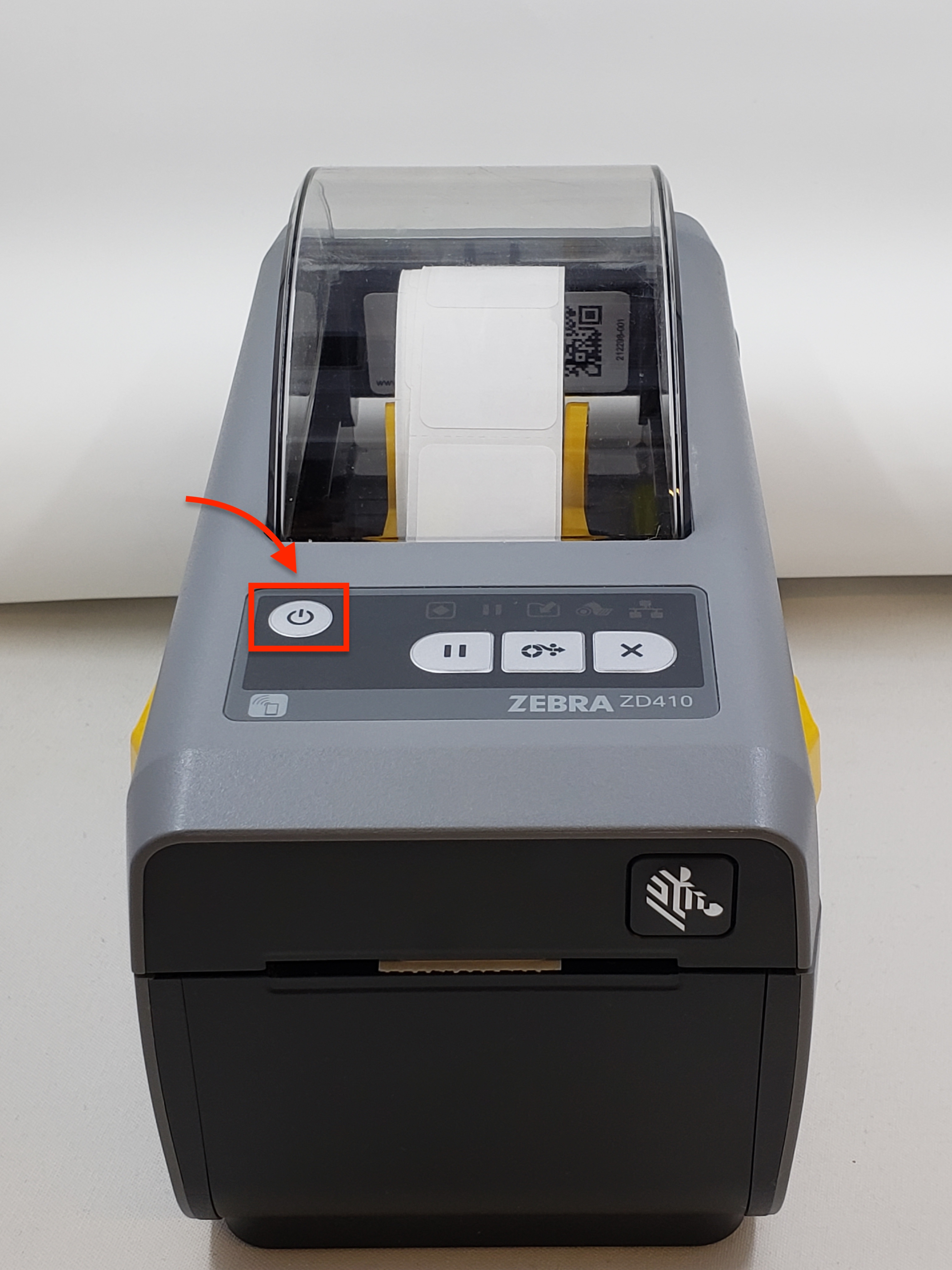
Press and hold PAUSE + FEED. While holding down these buttons, turn the printer ON
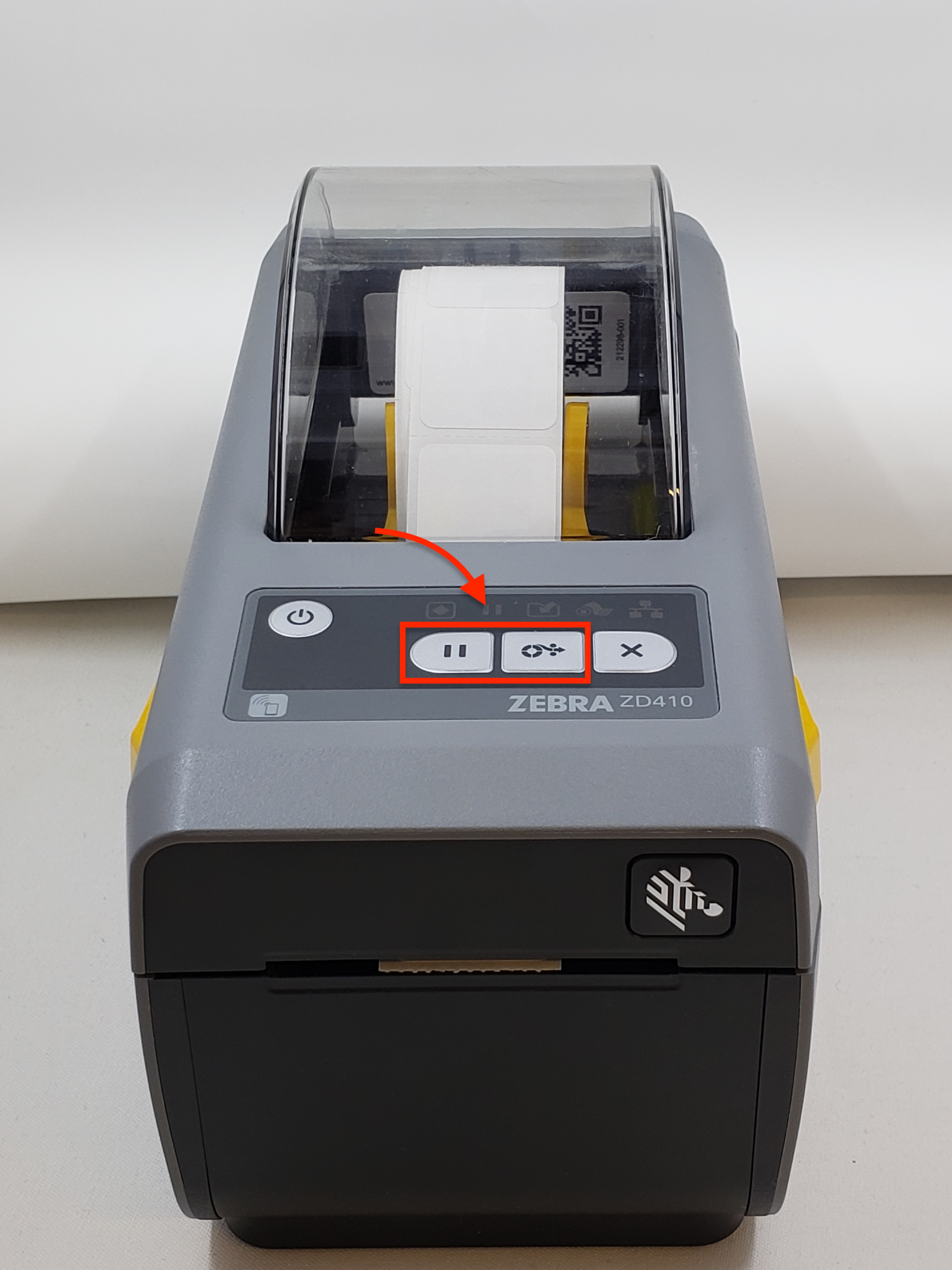
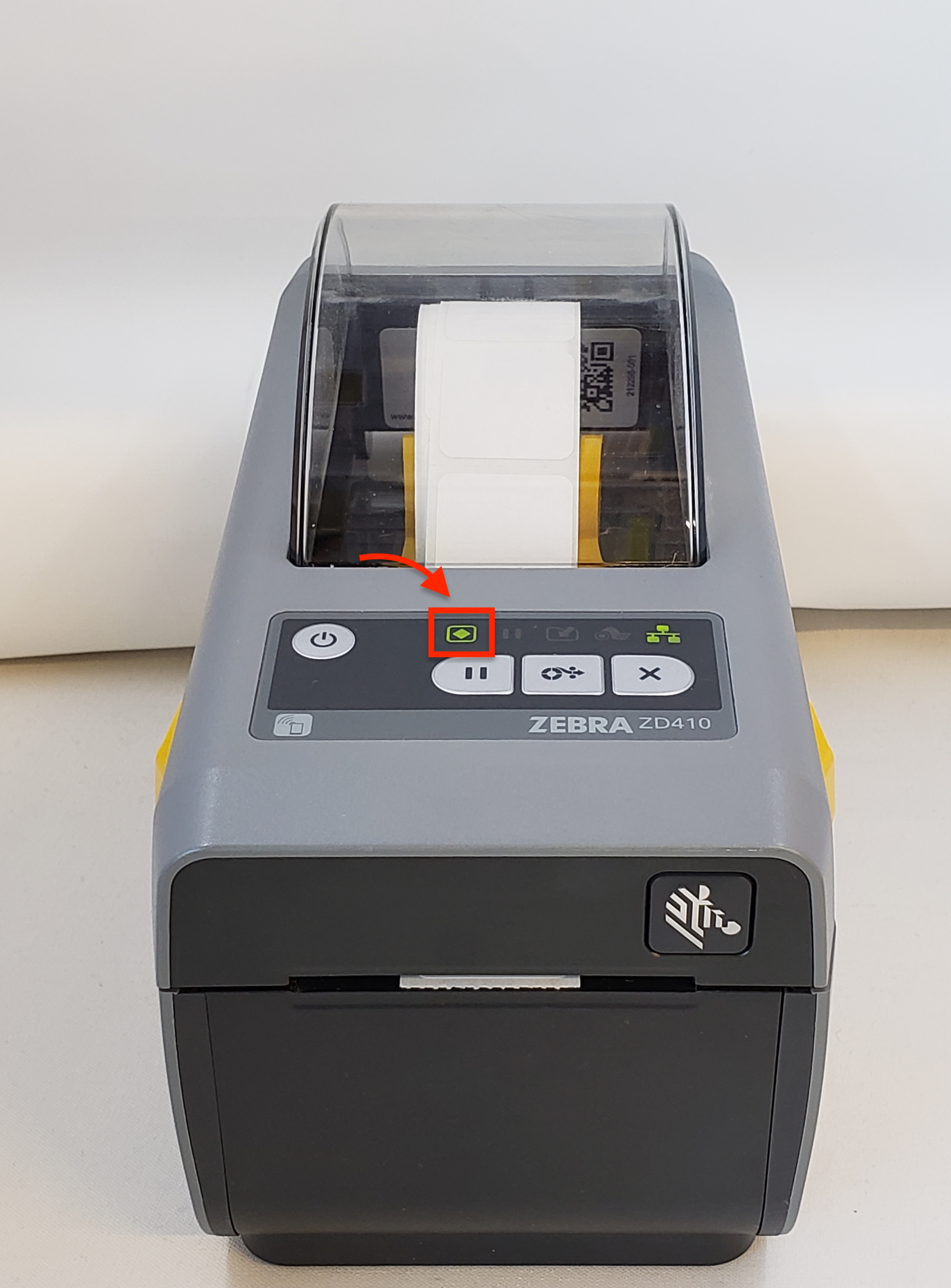
Hold PAUSE + FEED until the status indicator is a solid green
3-4 blank labels will feed out of the printer if the Factory Reset is done properly.
Zebra ZD621 Troubleshooting Guide
Section titled “Zebra ZD621 Troubleshooting Guide”| Problem | Symptom | Solution |
|---|---|---|
| Printer unresponsive | Job sent, but nothing prints | Restart Printer, check connection and print queue |
| Network light not blinking | Printer appears online but isn’t communicating | Network Troubleshooting |
| Media errors / misfeeds | “Media Out” message despite labels loaded | Media & Label Feed Issues |
| Poor print quality | Faded, streaked, or misaligned print | Print Quality Problems |
| Printer shows as offline | Status shows “offline” in DataNinja or Windows | Printer Status: Offline |
Quick Restart Procedure
Section titled “Quick Restart Procedure”- Power off the printer via the power button or unplug it.
- Wait 10 seconds.
- Power the printer back on.
- Check that:
- The network is blinking (indicates communication).
- The printer appears as “Online” in DataNinja or the Printer Station.
- The Feed Button is responsive.
Network Troubleshooting
Section titled “Network Troubleshooting”Ethernet
Section titled “Ethernet”- Confirm that the Ethernet cable is secure.
- Use a different cable or switch port to rule out hardware issues.
- Ensure a valid IP address is assigned (static preferred).
- Watch the network light:
- Blinking = good
- Solid = frozen
- Off = disconnected
Wi-Fi:
Section titled “Wi-Fi:”- Reconnect to Wi-Fi from the touchscreen.
- Make sure signal strength is sufficient.
- Confirm Wi-Fi SSID/password and DHCP settings.
👍 Tip
You can print the network config by pressing and holding Feed + Cancel for 2 seconds.
Media & Label Feed Issues
Section titled “Media & Label Feed Issues”Symptoms:
Section titled “Symptoms:”- Media Out Error
- Printer skips labels
- Print misalignment
Steps to Resolve:
Section titled “Steps to Resolve:”- Open the cover and re-seat the label roll.
- Make sure guides are properly aligned.
- Run media calibration:
- Tap Settings → Media → Calibrate from the touchscreen.
- Set correct media type:
- Direct Thermal or Thermal Transfer
- Check label type: gap, black mark, continuous
Print Quality Problems
Section titled “Print Quality Problems”Symptoms:
Section titled “Symptoms:”- Faded print
- Smudged or streaked labels
- Misaligned barcode
Steps to Resolve:
Section titled “Steps to Resolve:”- Clean the printhead using an approved cleaning pen or wipe.
- Adjust Darkness and Print via:
- Settings → Print Quality
- Use compatible labels and ribbon (if thermal transfer).
- Ensure media is properly loaded and tensioned.
Printer Status: Offline
Section titled “Printer Status: Offline”Symptoms:
Section titled “Symptoms:”- Shows offline in Print Station or Windows
- Not discoverable on the network
Steps to Resolve:
Section titled “Steps to Resolve:”- Restart the printer.
- Verify network cable or Wi-Fi status.
- Confirm IP address is reachable (ping test).
- Restart DataNinja Print Station (if used).
- Check that the printer driver is up to date.
Routine Maintenance
Section titled “Routine Maintenance”| Task | Frequency |
|---|---|
| Clean printhead | Every media/ribbon change |
| Clean platen roller | Weekly or if slippage occurs |
| Check label path for debris | Weekly |
| Firmware updates | Quarterly |